SSH is a powerful tool that can be used for many purposes. In this article, I will explain how you can use SSH to tunnel traffic to a remote host to bypass its firewall, or to use the remote host in a way similar to how you would use a VPN to secure your traffic.
Dynamic port Tunnel
Like a VPN, but a bit more manual.
A dynamic port tunnel allows you to route all your traffic through the remote host using SOCKS4. The result is that anyone listening to your traffic will only see an SSH connection from your host to the remote host. All traffic routed through the remote host will appear to come from that host.
This is great for two purposes. It can act like a VPN, where you can mask your traffic, or it can let you access resources that only the remote host can access.
To connect to a remote host and set up a dynamic port tunnel, run this command:
ssh -N -D localhost:8888 stanley@haxor.no
#      -D [bind_address:]port
This command does -N(ot) log you in, and sets up the connection to use -D(ynamic) port forwarding on your localhost port 8888.
To close the tunnel, press Ctrl+C.
In your favorite web browser, manually configure it to use the SOCKS4 proxy. Localhost port 8888. Remember to set it to proxy DNS requests through the SOCKS proxy too!
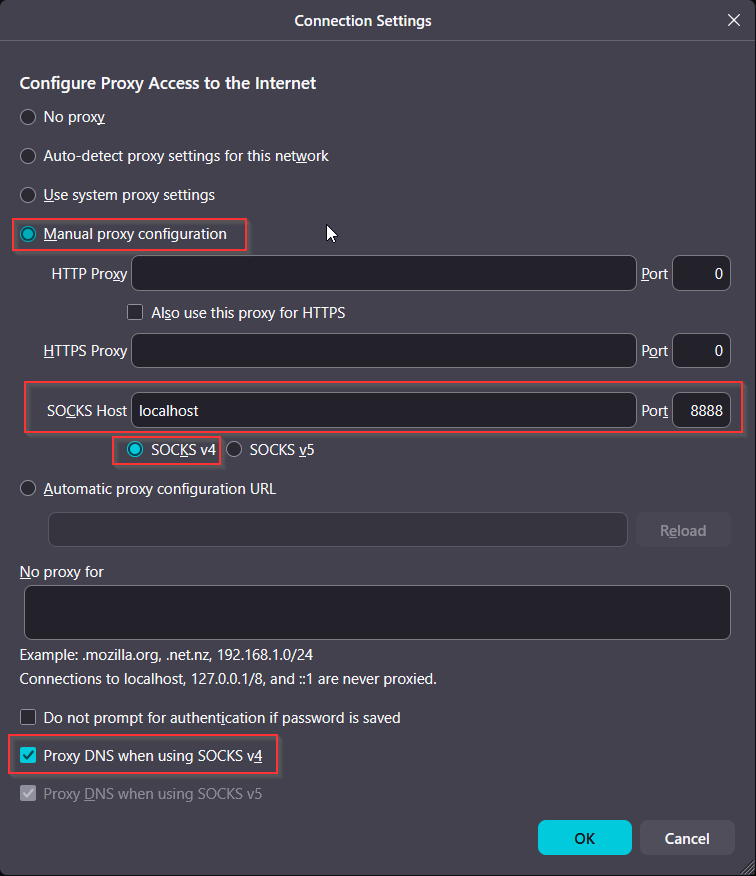
Setting up a SOCKS4 proxy in Firefox
Single-port Tunnel
Useful for accessing ports behind a firewall
Some services need to be configured using a web browser, which is a problem whenever you have to change default credentials or change other insecure defaults before you want the web to access them. In these instances, it can be powerful to set up a single-port SSH tunnel that you can bind to a port on your host, enabling you to access the services on the remote host as if they were running on your own host.
To set up a tunnel from your localhost port 8888 to port 8080 on the remote host, run this command:
ssh -N -L localhost:8888:localhost:8080 stanley@haxor.no
#      -L [bind_address:]port:host:hostport
#      -L [bind_address:]port:remote_socket
#      -L local_socket:host:hostport
#      -L local_socket:remote_socket
This command will -N(ot) log you in to the remote host, and will set up port forwarding with the -L flag.
To close the tunnel, press Ctrl+C.
Now, to access a web server listening on port 8080 on the remote server, connect to it in your browser at http://localhost:8888
Please note that you don't need to configure a SOCKS4 proxy to use this type of port forwarding, and port forwarding is not limited to web services. It can be used for anything! Just use your localhost port as if the service were running on your own host.